
This component provides a set of Layout Builder styles using the Folwell utility classes.
Example layout
The following layout will be detailed below:
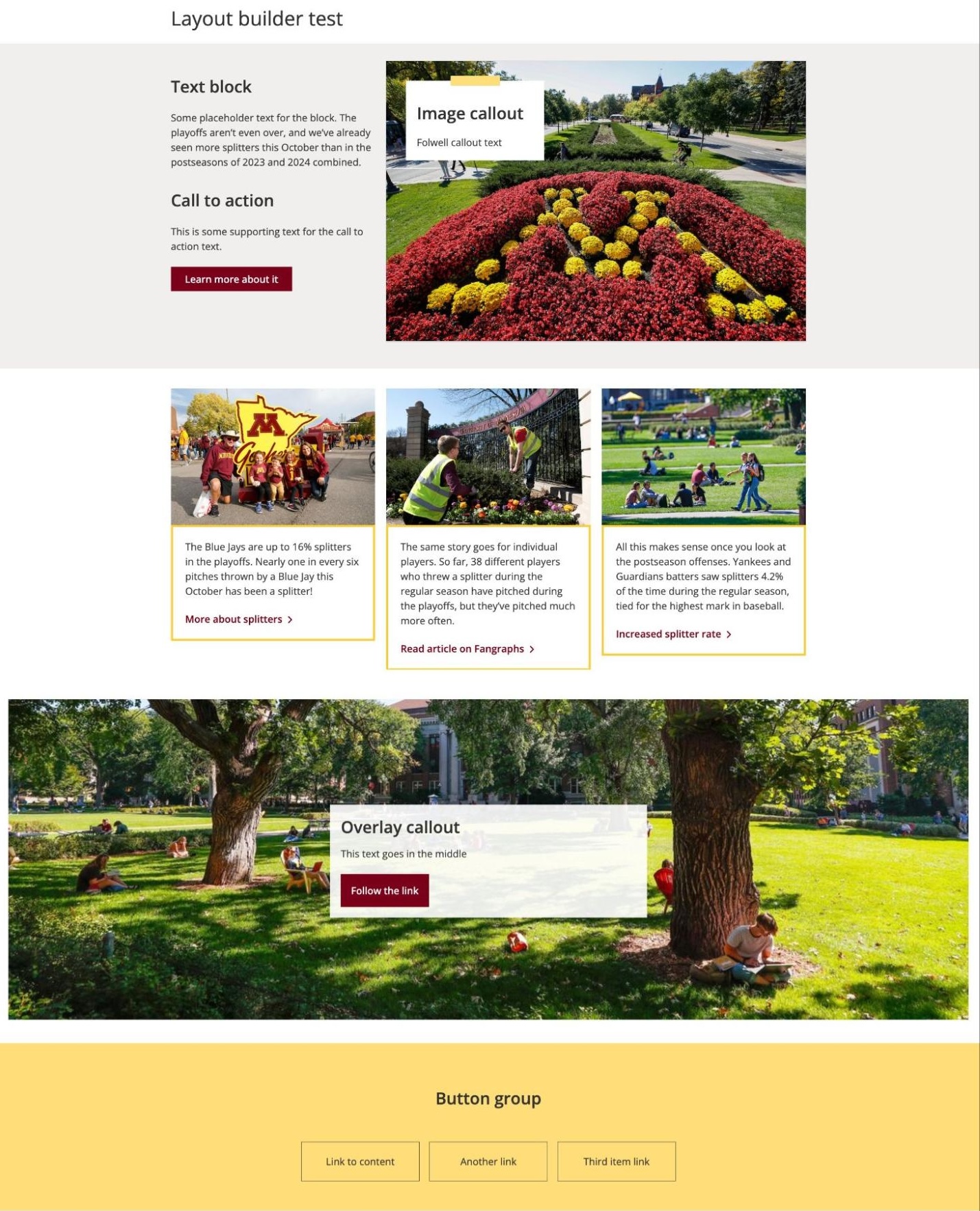
Section 1: Gray background

Layout: Radix Burr
Content width: 1200px
Section background: Gray - lighter
Section width: Full-width
Column 1:
- Text block
- Text block
Column 2:
- Folwell image callout
- Overlay gold bar
- Position: top left
Section 2: Three callouts

Layout: Brown
Section margin: Margin-top - 2
Content:
- Three Folwell image callouts
- Gold border
Section 3: Full-width callout

Layout: Boxton
Content width: none
Section margin: Margin-top - 2
Section width: full-width
Content:
- Folwell overlay slideshow
- Overlay position: middle
Section 4: Button group

Layout: Boxton
Content width: 1200px
Section background: Gold - light
Section margin: Margin-top - 2
Section width: full-width
Content:
- Folwell button group
- Three buttons
- Background: gold
Patterned backgrounds
Three new maroon patterned backgrounds, Agriculture, Arts, and Excellence, and one solid background, Sandbar, are now available for use on sections and blocks in Layout Builder.
These backgrounds are part of the University’s visual identity and are designed to add emphasis and visual interest when used thoughtfully. Because the patterned backgrounds are visually distinctive, use them intentionally and sparingly so they support the content without competing with it.
See the Best practices tab for guidance on using patterned backgrounds effectively.
Access Layout Builder
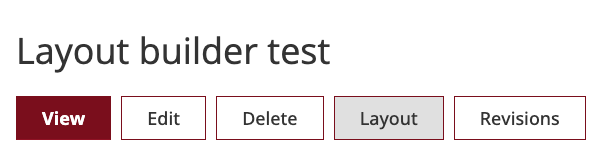
On a content type or page using Layout Builder, click the Layout link:
Now you should see the page broken into sections and blocks (if you already have content on the page).
This is an example of a blank page in Layout Builder mode:

Key Layout Builder concept: Section vs Block
In Layout Builder, a Section contains regions where content can be placed. They can be single-column layouts, or more complex.
A Block is a piece of content, it can be a Folwell component, View, Field…etc. The Block is placed inside a Section, but can also be dragged-and-dropped into other sections once created.
In the example below, the blank page has three Sections using Radix layouts of increasing complexity:
- Boxton (single-column)
- Burr (two-column)
- Brown (multi-column and multi-row)

Using the new Folwell Layout Builder Styles module, each section can be customized when it is added, or by clicking on the Configure [section name] link.
Section layout and style options
Click on the Configure [section name] link to see the new customization options.

They will appear on the right side of the screen:

Section styles
Content width
Allows you to set the width of the content within the section. This constrains all the content of the layout (even if it has multiple columns, and rows), and centers it horizontally.
Options:
- None
- 760px
- 900px
- 1200px
Section background
This setting applies a background color to the section.
Options:
- None
- Maroon
- Gray - lighter
- Gray - light
- Gold - light
- Gold
Section border
This will apply a solid 1px, dark-gray (#333 hex color) border to the section in various ways.
Options:
- None
- Border - all sides
- Border - bottom
- Border - bottom
Section margin
These options will apply margin outside the section, creating space between other sections
Options:
- None
- Margin top - 2 (2em)
- Margin bottom - 2 (2em)
Section padding
These options will add padding inside the section to create space.
Options:
- None
- Padding - small (0.5 em)
- Padding - 1 (1em)
- Padding - 2 (2em)
Section shadow
These options will add drop-shadow to the section.
Options
- None
- Shadow - subtle
- Shadow - page
- Shadow - emboss
- Shadow - close
Section width
These options allow the section to go edge-to-edge, breaking out of the 1200px width of the normal content.
Options
- None
- Full-width
Block styles
In Layout Builder, each individual Block can be customized using Layout Builder Styles.
To edit the options on a Block, click the Options button in the top right corner and choose Configure:


Block background
This will apply a background color to the block.
Note - this may not work if the component has a built-in background color.
Options:
- None
- Gold - light
- Maroon - light
- Gray-lighter
Block border
- None
- Border - all sides
- Border - bottom
- Border - bottom
Block margin
This will add margin to the outside of the Block.
Options:
- None
- Margin-top - 2em
- Margin-top - 1em
- Margin-bottom - 1em
- Margin-bottom - 2em
Block padding
These options will add padding inside the block to create space.
Options:
- None
- Padding - small (0.5 em)
- Padding - 1 (1em)
- Padding - 2 (2em)
Block shadow
These options will add drop-shadow to the section.
Options
- None
- Shadow - subtle
- Shadow - page
- Shadow - emboss
- Shadow - close
Patterned backgrounds
- Use a patterned background to highlight an important section, callout, or transition rather than as the primary background throughout a page.
- Keep content simple and easy to read. Avoid placing large amounts of text, dense content, or complex layouts over a patterned background.
- Make sure the pattern supports the content and visual hierarchy without distracting users from the information they are trying to find or understand.
- Avoid placing multiple patterned sections next to each other. Pair patterned backgrounds with solid backgrounds to create visual balance and separation.
- Ensure text, links, buttons, and other interactive elements remain easy to see, identify, and use.
Avoid patterned backgrounds when:
- The section contains a large amount of text or dense information.
- Users need to carefully read, scan, or interact with the content.
- The pattern makes text, links, buttons, or other interactive elements difficult to see.
- Multiple patterned sections would appear next to each other.
- A simpler background would provide better readability, visual hierarchy, or accessibility.
A good rule of thumb
Use patterned backgrounds to emphasize, not to decorate.
When in doubt, choose a simpler Folwell background. A patterned background should support the content, strengthen the page's visual hierarchy, and enhance the user experience without becoming a distraction.